Parent Square Information
Parent Square QR Code
Download Parent Square using the QR Code
_1770318826.png)
Accepting Parent Square Invitation
Getting Started with ParentSquare for Parents and Guardians
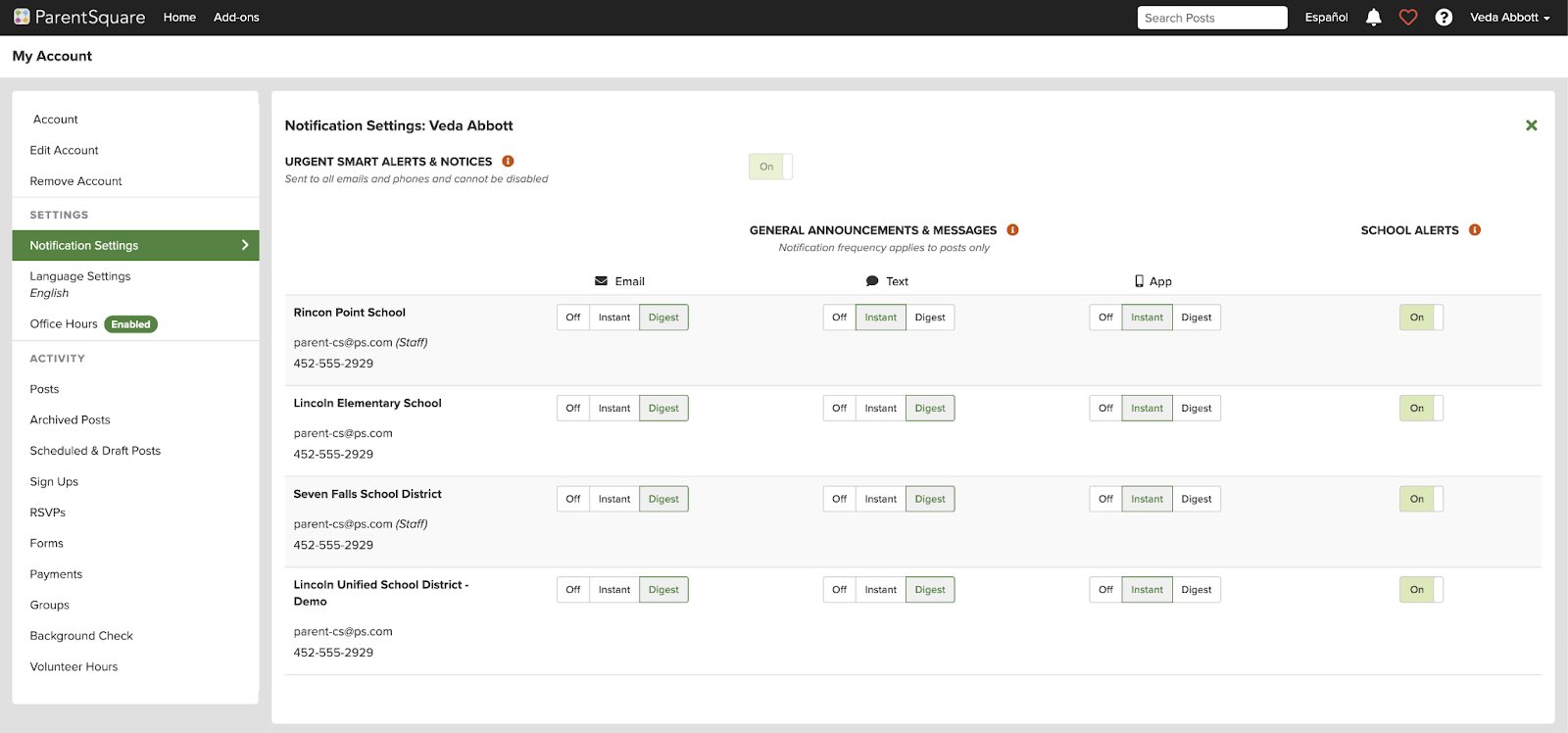
Activate your ParentSquare account
Your school will send you an invitation using your email address or phone number on file.
1. Open the invitation from ParentSquare in your email or text messages.
2. Click Activate your account or tap the link to go to the account registration page.
3. Enter your email or phone number, then click Get Started.
4. Check your contact information. If it looks correct, click Confirm. You’ll receive a code by
text or email.
5. Enter the verification code when asked.
6. You’ll see your children’s names. Click Confirm next to each child who should be
connected to your account. If a child is listed by mistake, click Not my child.
7. If everything looks correct, click Yes, this is me.
Change Notifications on Mobile App
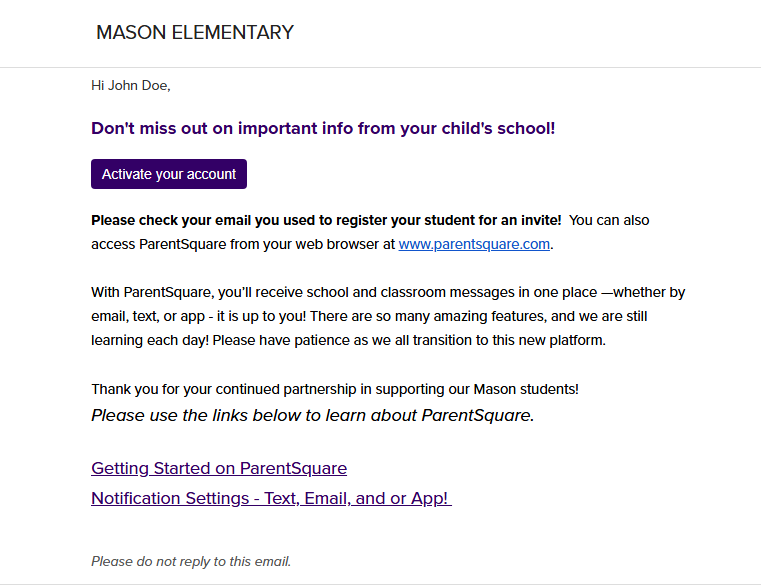
Change Notification Settings on Mobile App
-
From Home, tap the Menu (triple bars) on the top left.
-
Select Account.
-
Select Notifications.
-
Use the toggle to turn on or odd notifications by email, text, and app.
-
Select Instant or Digest for email, text, or app.
Change Notification Settings Browser
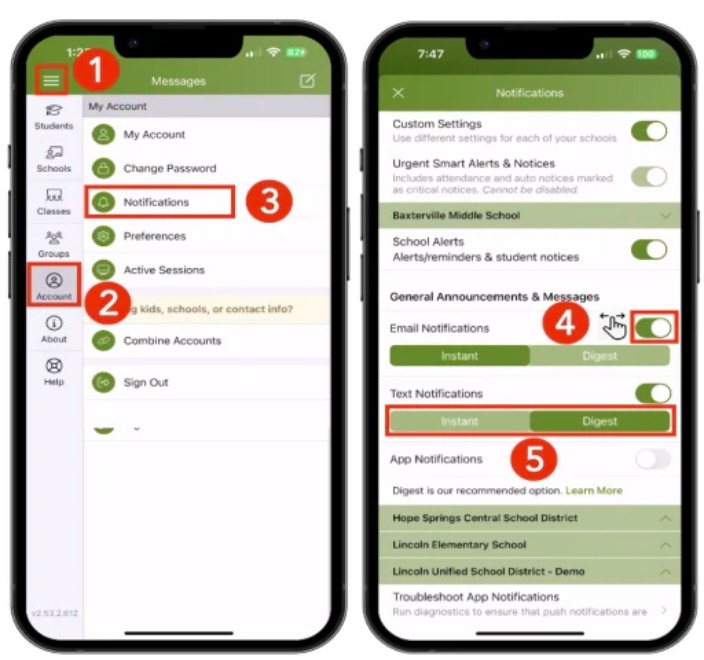
To Change Notification Settings using a web browser.
- Sign in to ParentSquare.
- Click your name in the top-right corner and select My Account.
- Select Notification Settings on the left.
- Choose your preferred notification settings for:
- General Announcements & Messages (Instant, Digest, or Off).
- School Alerts (On or Off).